¶ Car owner cabinet
A guide for the owners of cars managed by the fleet: how to sign in, what the numbers mean and when the money comes. The fleet's side of the same screens is described in Car owners.
The cabinet is ready for testing and has not been handed to owners yet: fleets are not sending invitations so far.
¶ Signing in
- The fleet sends you an invitation: a link, the portal address and your login.
- Open the link and set a password. The link works for 24 hours — if it has expired, ask the fleet for a new one.
- Sign in with your login and password. You stay signed in on this device; after half a year without visits you will be asked to sign in again.
Icon on the home screen. On an iPhone open the portal in Safari, tap Share → Add to Home Screen, then sign in once inside the icon — the icon keeps its own sign-in, separate from Safari. On Android open the portal in Chrome and choose Add to Home screen in the menu.
¶ Overview
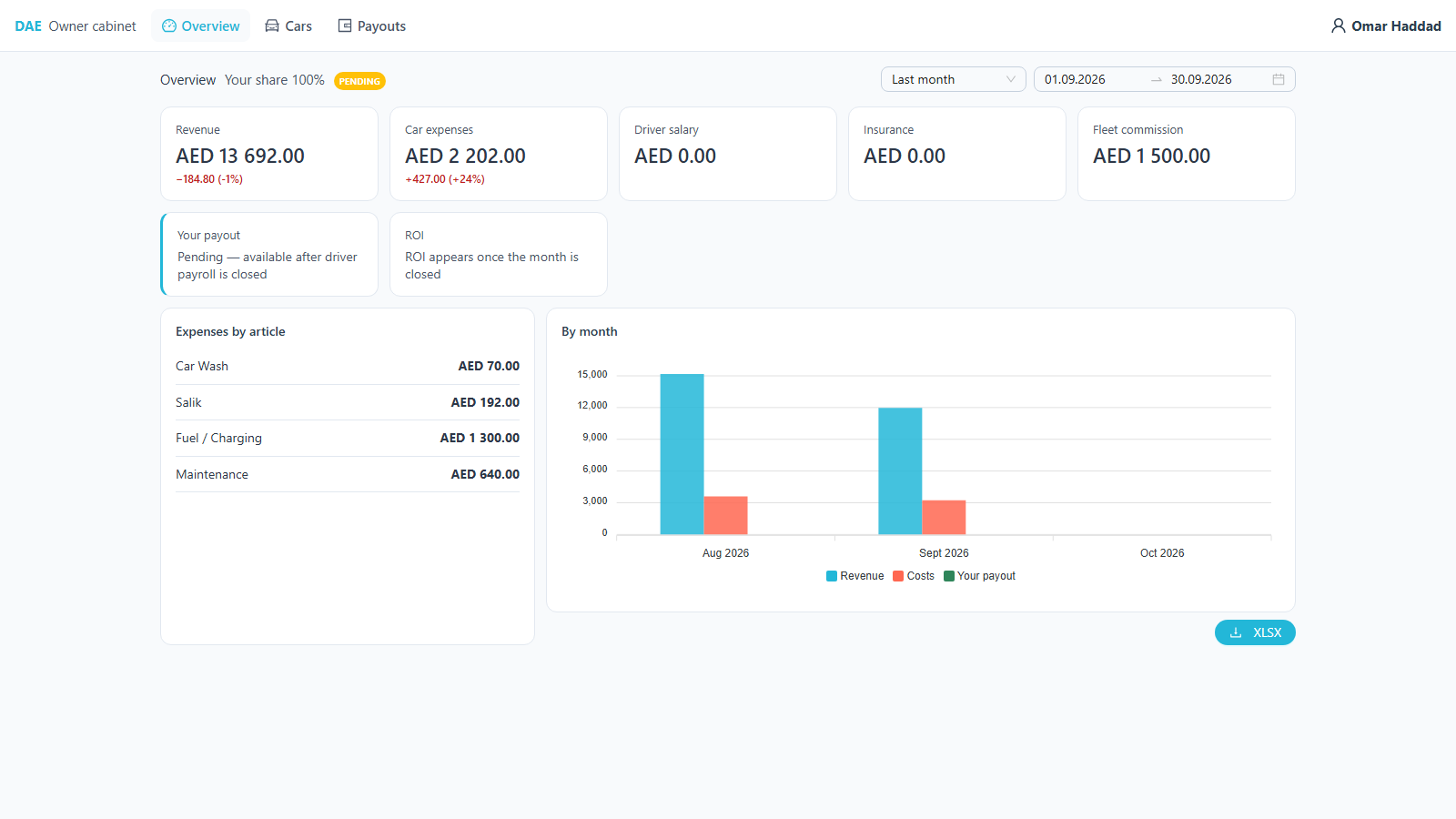
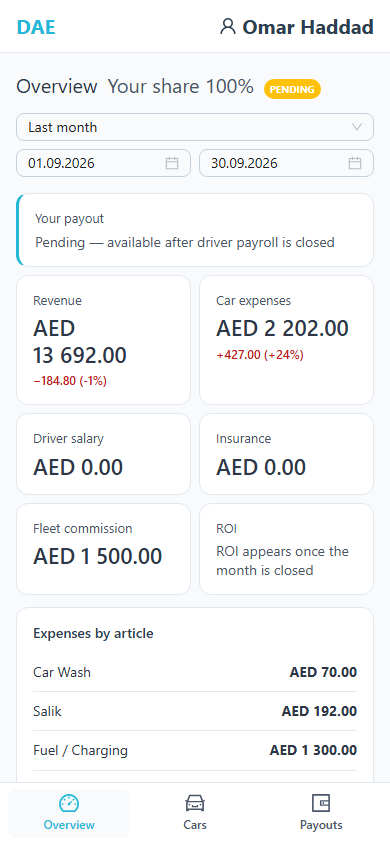
The money of your cars in your share for the chosen period — last month by default:
- Revenue — what the platforms paid for the rides, after their commission.
- Car expenses — fuel, Salik, washing, repairs and fines that the car bore. What the driver paid back is already deducted; in the operations list it is shown as Recovered from driver.
- Driver salary and Insurance — the driver's pay for the days on your car and the policy spread by days.
- Fleet commission — the monthly fee of the fleet, by the days your car was managed.
- Your payout — what is left for you. A month in Pending is not closed yet: the amount appears after the fleet closes the drivers' payroll for that month.
ROI — your monthly return on the purchase price and the commissioning costs; it appears once the fleet has entered the purchase price. Tap an expense article to see every operation behind it.
¶ Cars
Each car: its economics, trips, the operations of the statement, repairs, inspections with photos and its details. You only see the days when you owned a share of the car.
¶ Payouts
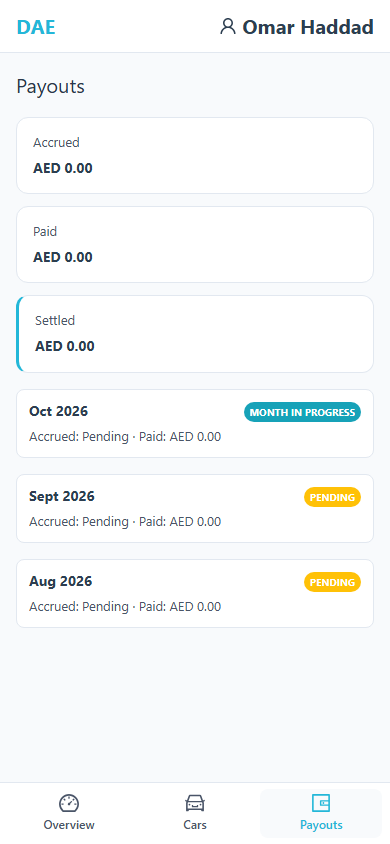
By month: accrued, adjustments, paid and the balance — Owed to you or Overpaid. An adjustment means the fleet re-checked a closed month and the amount changed; the difference is shown separately and is not counted twice.
¶ Several fleets
If another fleet manages your cars too, it gives you a code: open the menu with your name → Add fleet and enter it. The fleet appears after it confirms. Switch fleets at the top of the screen.
¶ Questions about the numbers
Ask your fleet manager — the fleet sees exactly the same screen as you do.