¶ Working from a phone
The portal has a phone layout for the screens a fleet manager reads on the move: the overview, people, cars and money. It switches on by itself on any screen narrower than a laptop — a phone, or a tablet held upright. Turn the tablet sideways and you get the full desktop screen back.
The four tabs at the bottom read, they do not change anything: there are no approvals, edits or exports on them. Other sections open on a phone with their usual buttons — only their tables are rearranged for the narrow screen (see below). Everything you see is the same numbers from the same calculation as on a computer — the phone does not count anything on its own, so the two can never disagree.
¶ Bottom navigation
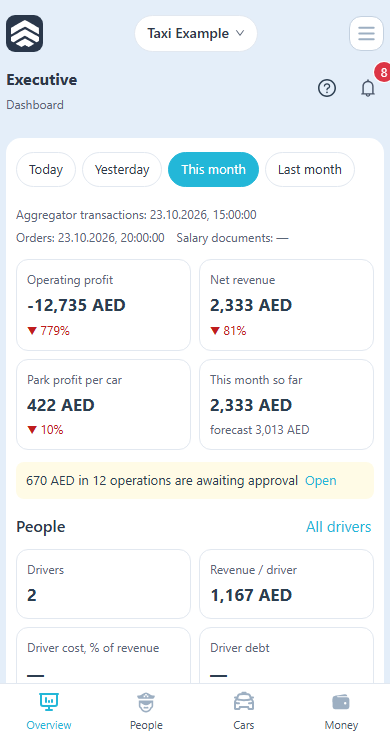
Four tabs sit at the bottom of the screen:
- Overview — the executive dashboard in short: revenue, profit and margin for the period, how the month is going, and top cars and money below.
- People — the drivers report.
- Cars — the cars report.
- Money — the money hub: cash boxes, receivables and P&L.
You only see the tabs your rights allow. The Executive section is still in testing and is not given to every role, so for most managers the bar starts with People. With fewer than two tabs the bar is not shown at all — a single tab is not navigation.
¶ Switching company
If you work in several companies, the company name sits as a chip in the header. Tap it and pick another company; the screen reloads with that company's data, exactly as on a computer.
¶ Lists and tables: columns and cards
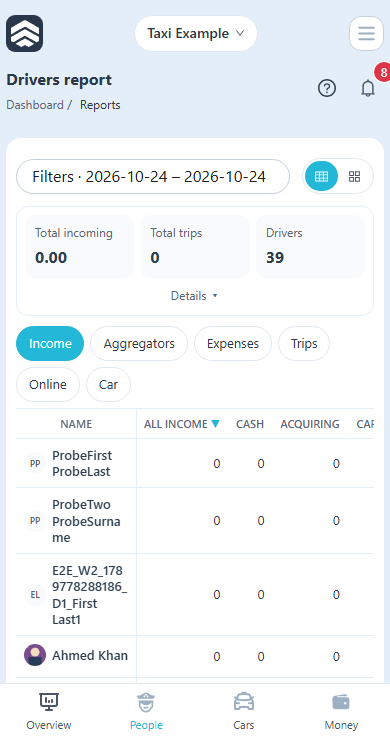
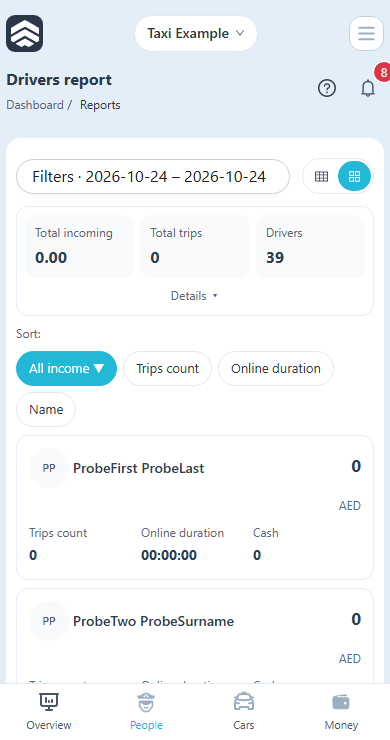
Tables are too wide for a phone — the drivers report alone has more than thirty columns. So every table in the portal shows on a phone in one of two views. The Columns / Cards switch sits above the table (in reports — two icons next to the filters); the choice is remembered on your device for each table separately:
- Columns — the main field (name, plate, date) stays pinned on the left and the other columns are shown in groups. Pick the group with the chips above the table. In reports the groups follow meaning (income, aggregators, expenses…); in other lists they are three columns in a row.
- Cards — one card per row: the main field in the title, the row's buttons next to it and the first fields listed below. In reports a card shows the main figure and three key numbers. Sort with the chips or the list above the cards.
Links and buttons in a row work as on a computer: the name opens the card, the pencil opens the edit form.
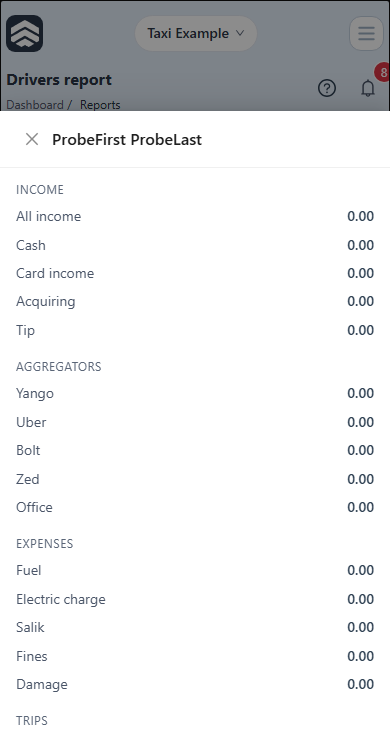
Tap any row or card to open a sheet with all its fields, grouped by meaning. This is how you reach a number that is not in the visible group.
¶ Driver and car cards
A driver's or car's card opens on the phone with its header and the key tabs:
- driver — details, transactions, revise and work status;
- car — details, economics (with the right to edit economics) and repair orders.
The other tabs, charts and every edit stay on the computer.
¶ What is only on a computer
- Exports. There is no XLSX or PDF on the phone: downloads behave differently on phones and the files are meant for a desk anyway. Take the export from a computer; every field of a row is still visible in its sheet on the phone.
- Approvals and edits — approving payments, saving targets, changing settings.
- Wide charts — the profit bridge and the detail tables ask you to turn the device sideways.
¶ Related pages
Executive dashboard · Drivers report · Money · Driver card · Car card · Common screens